A customer writes that they never received your invoice. Your mail log shows a bounce from an outlook.com or hotmail.com address, and the text says the message lacks SPF, DKIM, or DMARC authentication records. You check, and SPF is fine. DKIM looks fine too. Yet the mail was refused.
According to MailRoute, this started on November 5, 2026. Microsoft's consumer mail service began rejecting some of the mail from domains that do not publish a DMARC record. The rule is not limited to bulk senders, and as of MailRoute's write-up on November 6, Microsoft had published no notice about it. This article covers what is known so far, how to check your own domain, and how to turn on DKIM for a custom domain in Microsoft 365 so that DMARC has something to pass on.
What the bounce looks like
The sender gets a 550 error similar to this one. A bracketed server code that differs per message may follow it:
550 5.7.1 Message rejected: Message lacks SPF/DKIM/DMARC Auth Records (AS9031519)
The wording suggests that all three records are missing. MailRoute reports that this is usually not the case. The domains it saw bounce mostly had working SPF, and many had DKIM as well. What they lacked was the DMARC record that ties SPF and DKIM to the domain in the From address.
How this differs from Microsoft's published rules
Microsoft does have documented sender requirements. Since May 2025, domains that send more than 5,000 messages a day to Outlook.com must pass SPF, DKIM, and DMARC, or get a 550 5.7.515 Access denied response. MailRoute cites Microsoft's announcement for this, and the rule targets bulk senders. Most small businesses reasonably concluded it did not apply to them.
The new rejection differs in three ways, based on MailRoute's observations:
- It reaches low-volume senders. Even a one-line reply from a small office can bounce.
- It has not been announced. MailRoute found no postmaster notice, blog post, or service-health entry from Microsoft as of November 6.
- It does not say what failed. A 5.7.515 bounce lists the individual SPF, DKIM, and DMARC results. This one only says that records are missing.
Only part of the mail from an affected domain is refused. One message to a Hotmail address goes through, the next bounces, and a resend may succeed. That inconsistency is why it is easy to miss. The sender sees a bounce full of acronyms, assumes a glitch, and moves on, while the recipient never learns a message was sent.
MailRoute also argues this is the direction every major mailbox provider is heading: requirements start with bulk senders, get announced with a deadline, and then quietly become the baseline for everyone. That is MailRoute's reading of the trend, not something I verified against other providers' announcements. Either way, publishing DMARC is cheap and does not depend on any one provider's policy.
Check whether your domain has a DMARC record
Replace example.com with your domain:
dig +short TXT _dmarc.example.com
A line starting with "v=DMARC1 means a record exists. No output means you have none, which is the case this rejection targets. If you added a record and still get nothing, the usual cause is that it is published at the wrong hostname. That is covered in Thinking DMARC Is Live Because the TXT Record Exists? Check It Sits at _dmarc.
Fix 1: publish a DMARC record at p=none
Add a TXT record at your DNS host:
| Field | Value |
|---|---|
| Type | TXT |
| Name | _dmarc |
| Value | v=DMARC1; p=none |
p=none is the safe starting point. It declares that your domain uses DMARC and asks receivers to send reports, but it tells them to take no action on failures, so it does not change how other receivers treat your mail. You can add a rua=mailto:... tag later to receive aggregate reports. Reading them regularly is what makes it safe to tighten the policy afterwards, as described in Reading DMARC Aggregate Reports Weekly to Catch Senders Failing Alignment and Thinking a Short DMARC p=none Phase Is Enough Before Switching to p=reject.
There is one condition. DMARC passes only when SPF or DKIM passes for the same domain that appears in the From address. If neither is aligned, a DMARC record alone will not make your mail pass. This is where Microsoft 365 needs a second step.
Fix 2: enable DKIM for your own domain in Microsoft 365
Until you enable DKIM for your custom domain, Microsoft 365 signs outbound mail with the tenant's default key, using a domain under yourtenant.onmicrosoft.com. That signature is valid, but its domain does not match your From address, so it does not count toward DMARC. Turning on DKIM for your own domain makes Microsoft 365 sign with a domain that does align.
You need two things for this: a domain that is already verified in your Microsoft 365 tenant, and access to the DNS zone for that domain. Unverified domains do not appear in the DKIM list.
Step 1: Sign in to the Microsoft Defender portal
Go to security.microsoft.com and sign in with a Global Administrator account, or with a user that has the required security roles.
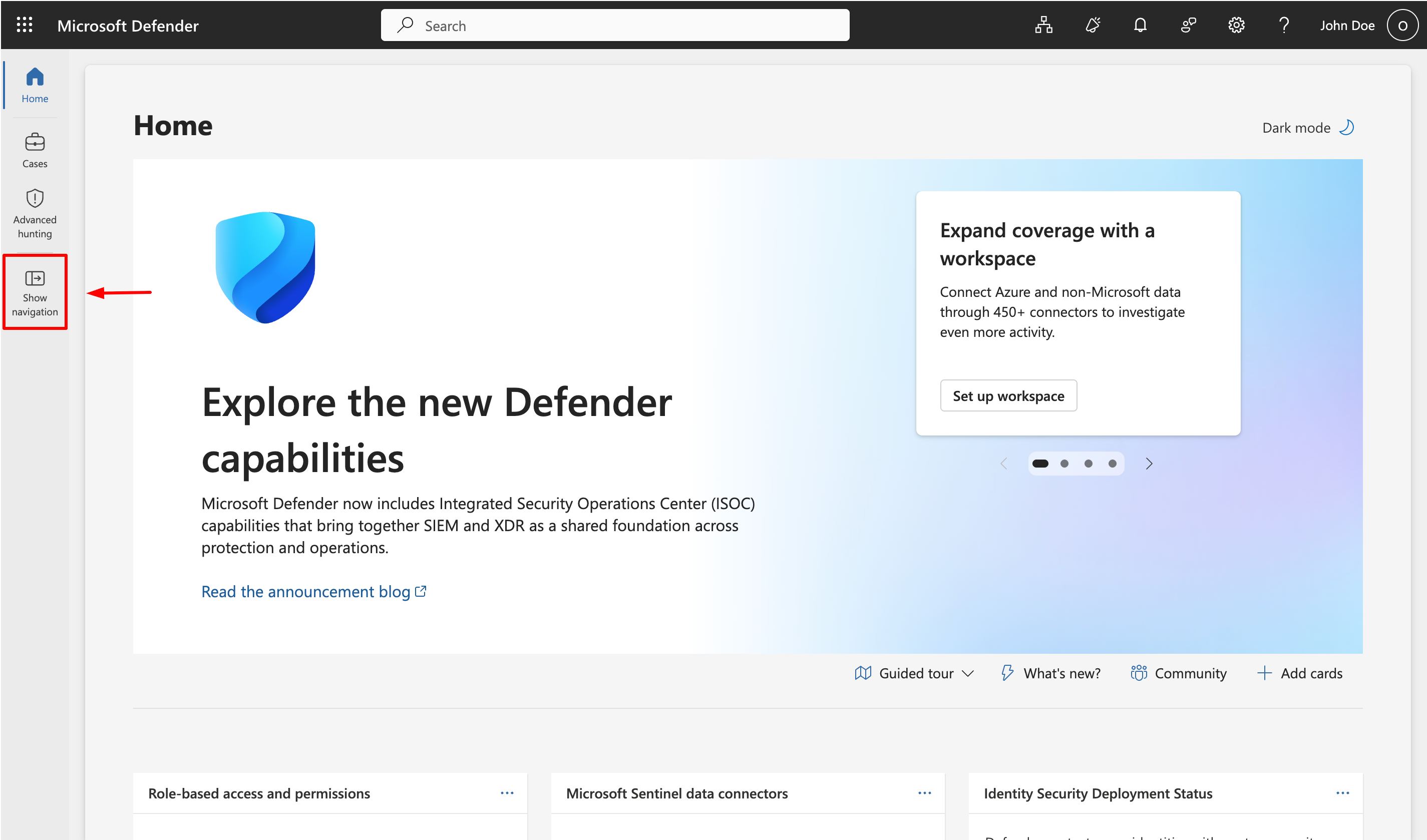
Step 2: Open Email & collaboration, then Policies & rules
If the left navigation is collapsed, expand it first. Then choose Email & collaboration, and under it Policies & rules.
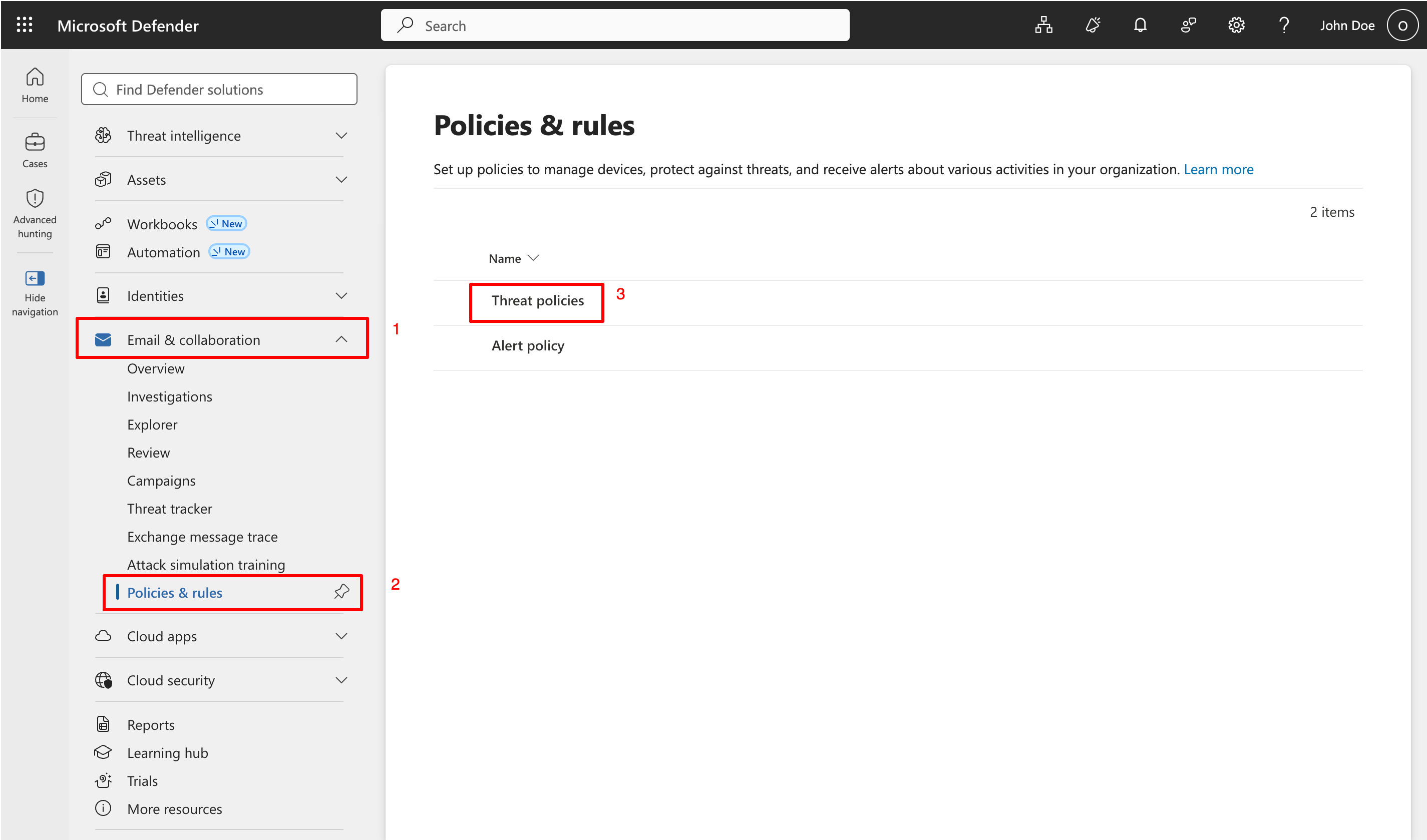
Step 3: Open Threat policies
On the Policies & rules page, select Threat policies.
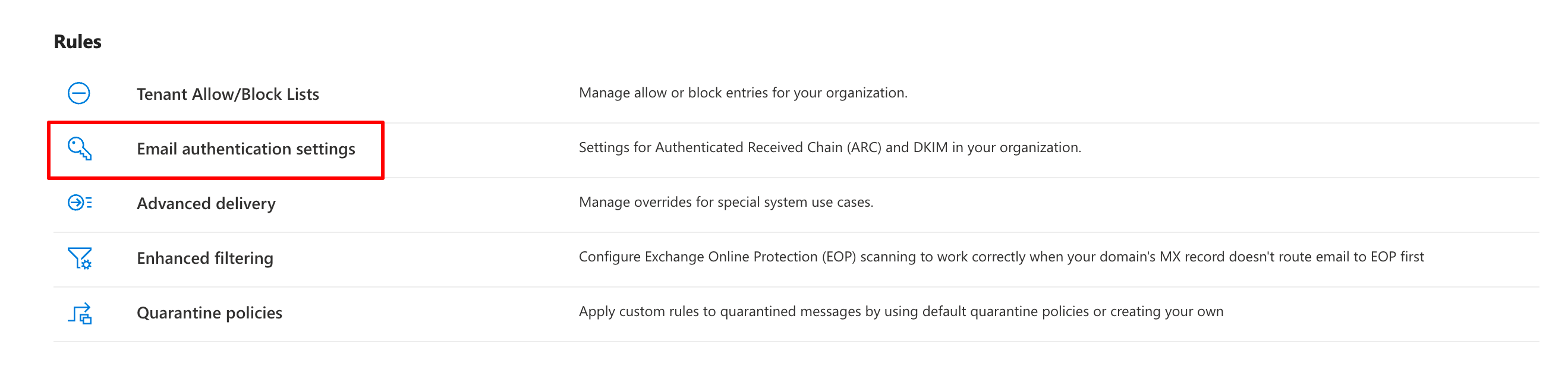
Step 4: Open Email authentication settings and the DKIM tab
Select Email authentication settings, then switch to the DKIM tab. Your verified domains are listed here. Pick your custom domain, not the .onmicrosoft.com entry.
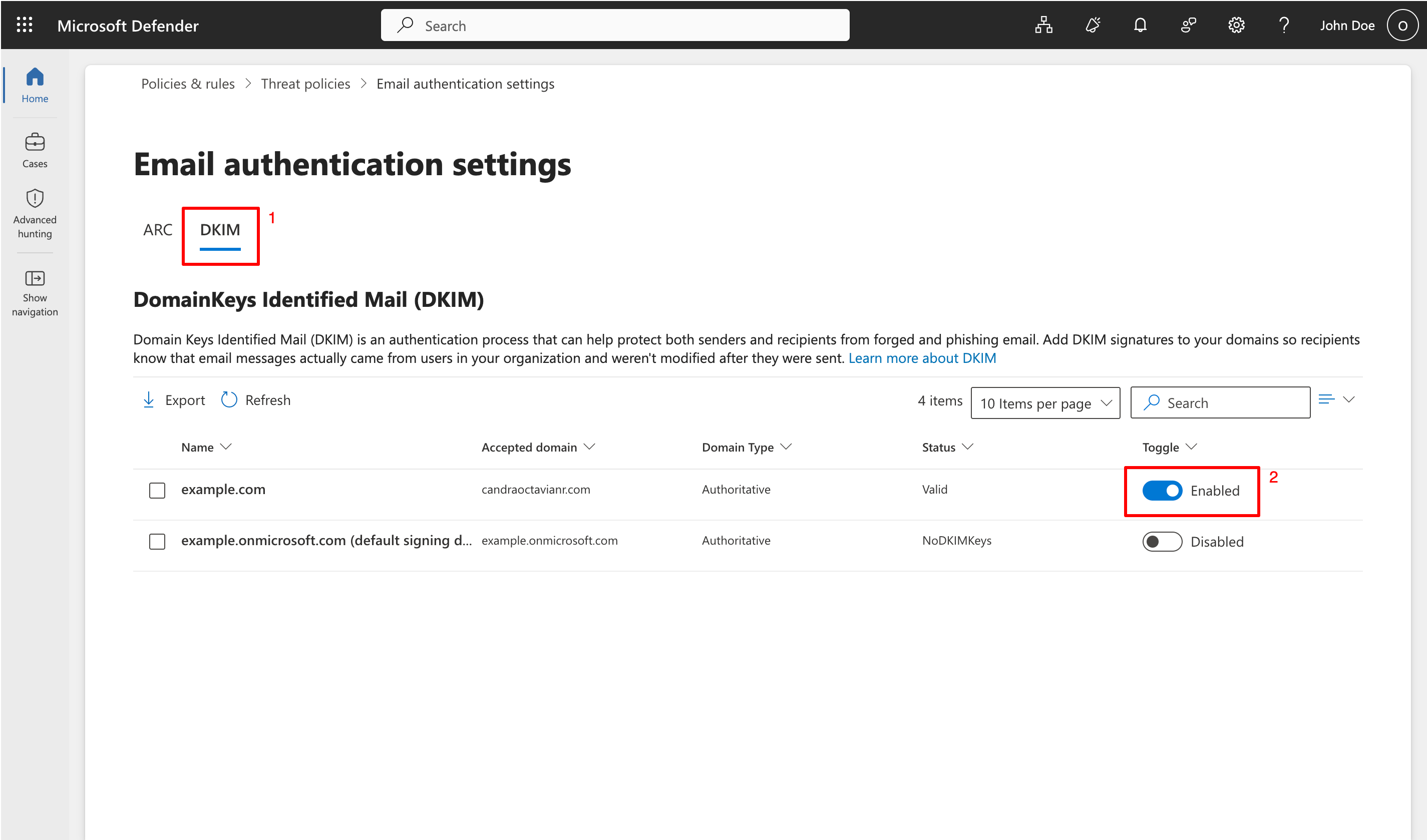
Step 5: Create the DKIM keys and publish two CNAME records
If the domain has no keys yet, use the option to create DKIM keys. Microsoft 365 then shows the two CNAME records you need. Each Microsoft 365 organization uses the same two hostnames, selector1._domainkey and selector2._domainkey, and the values they point to are generated per domain. The general form, from Microsoft's documentation, is:
Hostname:  selector1._domainkey
Points to: selector1-<CustomDomainWithDashes>._domainkey.<InitialDomainPrefix>.<DynamicPartitionCharacter>-v1.dkim.mail.microsoft

Hostname:  selector2._domainkey
Points to: selector2-<CustomDomainWithDashes>._domainkey.<InitialDomainPrefix>.<DynamicPartitionCharacter>-v1.dkim.mail.microsoft
Do not type these from the example. Copy the exact values shown for your domain in the portal. Some tenants may still see the older .onmicrosoft.com form, so the portal is the source of truth.
Two practical notes when you publish them:
- At most DNS hosts, enter only
selector1._domainkeyas the record name. The host appends your domain automatically. - If you use Cloudflare, set both records to DNS only (grey cloud), since they are plain CNAME records.
Step 6: Confirm both CNAMEs resolve before you enable signing
dig +short CNAME selector1._domainkey.example.com
dig +short CNAME selector2._domainkey.example.com
Both should return the Microsoft hostnames you published. Do not enable signing before both resolve from outside your network. Otherwise Exchange signs with a selector that receivers cannot look up, and every signature fails validation.
Step 7: Turn on signing
Return to the DKIM tab, select your domain, and switch on Sign messages for this domain with DKIM signatures. If the portal says it cannot find the CNAME records, DNS has probably not propagated yet. Wait and try again. One source reports that if the portal still cannot detect correct records after about 48 hours, the problem may need Microsoft support.
Step 8: Verify with a real message
Send a test message to an external mailbox and open the full headers. In the Authentication-Results header you should see something like this, where the header.d= value is your own domain rather than an onmicrosoft.com one:
dkim=pass header.d=example.com
spf=pass
dmarc=pass header.from=example.com
The exact header layout varies by receiver, but the three things to look for are the same: DKIM passing, the signing domain matching your From domain, and DMARC passing.
Checklist
- Run
dig +short TXT _dmarc.example.com. If it is empty, publishv=DMARC1; p=noneat_dmarc. - If you send through Microsoft 365, enable DKIM for your custom domain so a DKIM signature aligns with your From address.
- If other services send as your domain (a CRM, helpdesk, or invoicing tool), confirm each signs with your domain too. See Added a New CRM or Helpdesk? Verify It Signs DKIM With Your Own Domain.
- Send a test to an Outlook.com or Hotmail address and read the headers.
- Watch DMARC reports for a few weeks before considering
p=quarantineorp=reject.
Because the rejection hits only part of your mail, "it works for me" proves little. A domain with no DMARC record is the exposed case, and the fix takes a few minutes: one TXT record, and for Microsoft 365 senders, one toggle after two CNAMEs.